
Overview
Calendars display all sessions on the site and the sessions that you have registered for or that have been added to your personal calendar by a site administrator. Access your calendar to download session information onto your personal calendar (Outlook, iCal, Gmail) and schedule email reminders before the session starts.
In this article:
- Log into the site
- Go to your dashboard
- Navigate to Calendar
- View sessions
- Access sessions
- Add reminders
Step by Step Walkthrough
Step 1 - Log into the site
Find the “Login” button in the upper right-hand corner of the site’s homepage or login directly from the site’s login screen.
Step 2 - Go to your dashboard
If you are not taken to your dashboard after logging in, click your name and then "My Dashboard" in the upper right-hand corner of the site.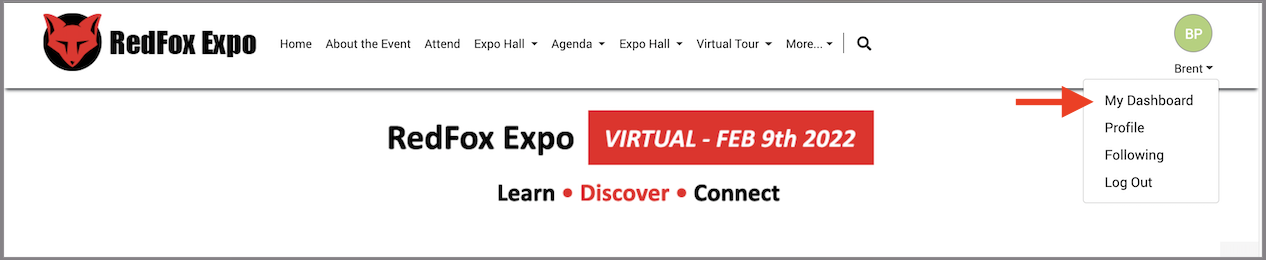
Step 3 - Navigate to Calendar
From the dashboard, select the Calendar tile.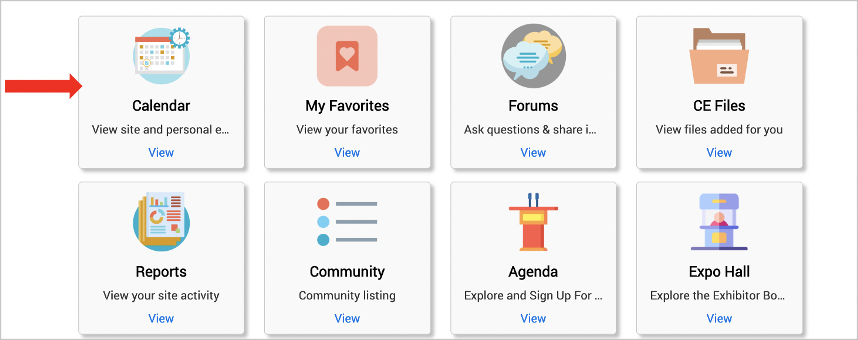
Step 4 - View Sessions
In the table, explore the sessions that you have registered for or that have been added to your personal calendar. Toggle between list, month, week, and day calendar views. 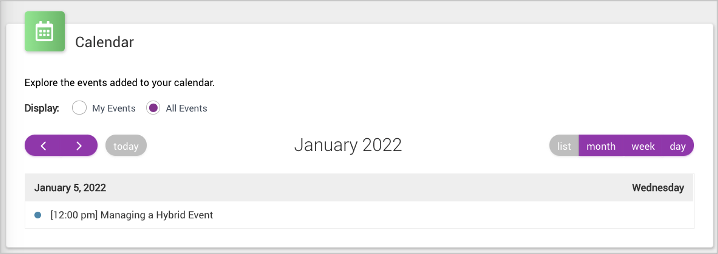
Step 5 - Access Sessions
Click on the title of the session to view additional information. Access the session by using the hyperlink under event information or click the event link to be taken to the event post. Click "+Add to Calendar" to add the event to your personal calendar on your computer.
Step 6 - Add reminders
Click the "+Add Reminders" button to add email reminders before the event. These reminders can be scheduled by the day, hour, or minute. Continue clicking the "+Add Reminder" button to add additional reminders. Reminders can be sent by email or by mobile phone number if your number is included in your profile section. Click the trash can icon to delete any unwanted reminders.
Comments
0 comments
Please sign in to leave a comment.